
If you searched for smart hub youtube not working, start with the simple split: is YouTube broken everywhere, or only on the Samsung TV? If it is only the TV, the best order is cold boot, check the network, update the TV, clear or reinstall YouTube, then reset Smart Hub if other apps are misbehaving too.
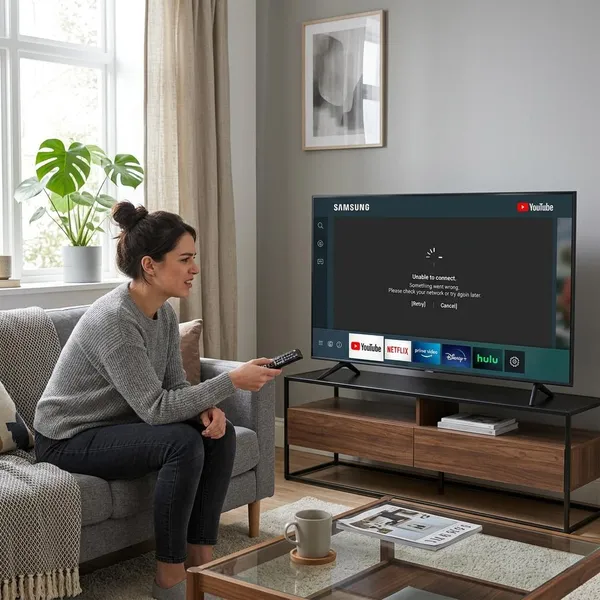
Why is YouTube not working on Samsung Smart Hub?
YouTube can fail on Samsung Smart Hub for a few different reasons, and the symptom usually gives away where to look first. A spinning screen or constant buffering points toward the network. A crash, black screen, or app that opens and closes often points toward app data or TV software. If YouTube has disappeared completely, Smart Hub settings or model support become more likely.
The most useful check is to compare devices. If YouTube works on your phone but not on the TV, focus on the Samsung TV, Smart Hub, or the Wi-Fi signal near the TV. If YouTube fails on every device in the house, do not waste time reinstalling the TV app yet.
The YouTube service is down
Sometimes nothing is wrong with your Samsung TV. Open YouTube on a phone using mobile data, or check it on a laptop. If YouTube is also failing there, wait a while before changing TV settings.
This is the one situation where restarting the TV, clearing cache, or resetting Smart Hub will not help. It is better to avoid making extra changes while the service itself is unstable.
The TV has lost its internet connection
A Samsung TV can show as connected to Wi-Fi and still have a poor internet path. That usually looks like videos stuck on loading, thumbnails not appearing, sign-in errors, or playback that starts and then freezes.
- Only YouTube is slow: check the app cache and software after testing the network.
- Several apps are slow: restart the router and reconnect the TV first.
- The TV is far from the router: weak Wi-Fi is more likely than a broken app.
The YouTube app data is corrupted
Corrupted app data is a common cause when YouTube is the only app acting strangely. The app may freeze on the logo, show a black screen, crash back to Smart Hub, or keep showing the same error after every launch.
Start with cache because it is the least disruptive. Clear app data only if cache does not help, because that can remove saved app settings and may sign you out.
The TV software is outdated
Older Samsung firmware can make streaming apps unstable, especially after the app itself has changed. If YouTube used to work but has become unreliable over time, a TV software update is worth doing before deeper resets.
Smart Hub is not loading correctly
Smart Hub is the app platform behind YouTube, so a Smart Hub glitch can affect more than one app at once. Blank app icons, apps that will not update, or several streaming services failing together are stronger signs of a Smart Hub problem than a YouTube-only problem.
The TV no longer supports the current YouTube app
On some older Samsung TVs, the current YouTube app may no longer be supported. The clues are different from a normal glitch: YouTube may be missing from the app store, refuse to update, or fail again immediately after reinstalling.
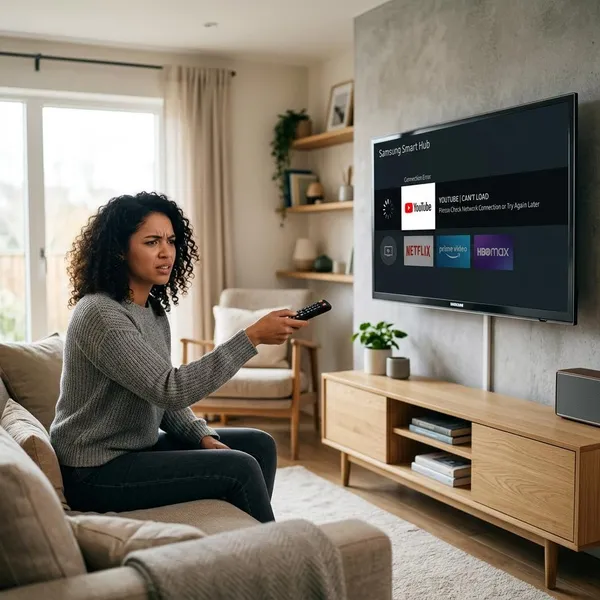
How to fix YouTube on Samsung Smart Hub
Use the fixes in order unless the symptom clearly points somewhere else. The goal is to avoid wiping settings too early. A cold boot or network reconnect takes a minute; a Smart Hub reset means signing back into apps and rebuilding part of your setup.
Cold boot the Samsung TV
A cold boot fully restarts the TV instead of leaving it in standby. Hold the power button on the remote until the TV turns off and starts again, or unplug the TV for about 30 seconds before plugging it back in.
This is the best first step for a black screen, frozen logo, or app that suddenly stopped opening after working earlier the same day.
Reconnect the TV to the internet
Open the TV network settings, disconnect from Wi-Fi, then reconnect with the password. If possible, test a mobile hotspot for a few minutes. If YouTube works on the hotspot, your TV is probably fine and the home network needs attention.
Update the TV software
Go to the TV settings and look under Support for Software Update, then choose Update Now if it is available. Keep the TV powered on until the update finishes, then restart and test YouTube again.
Clear the YouTube app cache
Cache clearing removes temporary app files without fully reinstalling YouTube. It is a good middle step when the app opens but behaves badly, such as freezing, loading slowly, or crashing after a few seconds.
Reinstall the YouTube app
If cache does not help, reinstalling gives the TV a fresh copy of the app. After the reinstall, test more than one video. A short clip may play even when longer HD or 4K videos still expose a network or app problem.
Reset Smart Hub
Reset Smart Hub when YouTube still fails after app cleanup, or when several apps are broken at the same time. You may be asked for a PIN; on many Samsung TVs the default is 0000 unless it was changed.
A Smart Hub reset is not the same as a full factory reset. It targets the app platform, so you should expect to sign back into streaming apps, but it is usually less drastic than erasing the whole TV setup.
How to clear or reinstall the YouTube app
If YouTube is the only app giving you trouble, this section is usually more useful than a full Smart Hub reset. Samsung menu names vary by model year, but the idea is the same: find YouTube in app storage, try the light reset first, then move to the deeper one only if needed.
Open Device Care and Manage Storage
On many Samsung TVs, go to Settings, then Support or General, then Device Care. Open Manage Storage if it appears. Some models place similar controls under Apps instead.
If the menu path is different on your TV, look for the screen that lists installed apps and storage use. That is usually where cache, data, delete, or reinstall options live.
Select YouTube and view its details
Choose YouTube from the app list and check which options your TV gives you. You may see Clear Cache, Clear Data, Delete, Reinstall, or only some of these.
- Clear Cache: removes temporary files and is the safest first try.
- Clear Data: resets more app information and may sign you out.
- Delete or Reinstall: refreshes the app itself.
Clear the cache before clearing app data
Use Clear Cache first because it fixes many odd app problems without removing as much. Test YouTube immediately afterward. If the same error returns, go back and use Clear Data for a deeper app reset.
Delete and install YouTube again
If cache and data clearing fail, delete YouTube if your TV allows it, restart the TV, then install YouTube again from Smart Hub. This is most useful after a failed update, repeated crashes, or an app that opens but never behaves normally.
Select Reinstall if Delete is unavailable
Some Samsung TVs treat YouTube as a built-in app and do not show a Delete option. In that case, choose Reinstall. It is still worth trying because it can replace damaged app files without removing the system app completely.
If Reinstall does not change anything, move your attention to Smart Hub, firmware, network filters, or model compatibility instead of repeating the same reinstall step.
How to fix YouTube buffering or freezing
When YouTube opens but playback keeps stopping, the network is usually the first place to look. App corruption can cause freezing, but repeated buffering during videos is more often weak Wi-Fi, router congestion, or other devices using too much bandwidth.
Restart the router
Unplug the router, wait about 30 seconds, then plug it back in and give the network time to come back fully. Test YouTube only after the TV has reconnected properly.
This is a simple check, but it often fixes temporary router issues that show up as buffering on the TV before they become obvious on phones or laptops.
Move the TV closer to Wi-Fi
If the TV is in a far room, behind thick walls, or on another floor from the router, Wi-Fi may be connected but unstable. A quick test is to move the router to a more open spot, or test the TV closer to the router if that is practical.
For a TV used daily for long videos or 4K playback, weak Wi-Fi is worth fixing properly. For occasional viewing, lowering video quality may be enough, but it is only a workaround.
Pause other heavy downloads
Pause game downloads, cloud backups, large file transfers, or 4K streaming on other devices, then test YouTube again. If playback improves, the household connection is being shared too heavily.
Test a wired network connection
If your Samsung TV has an Ethernet port, connect it directly to the router and try YouTube again. This is one of the clearest tests because it removes Wi-Fi interference from the picture.
If Ethernet works smoothly while Wi-Fi does not, avoid resetting Smart Hub over and over. The better fix is router placement, a stronger Wi-Fi setup, or keeping the TV wired if that is convenient.
Turn off VPN or network filters
VPNs, custom DNS settings, parental controls, ad-blocking filters, or strict router security tools can interfere with YouTube. Turn them off temporarily and test again, especially if YouTube works on mobile data but not on home Wi-Fi.
Lower the YouTube video quality
Lowering video quality is a useful test and a short-term fix. If 4K or 1080p keeps freezing but 720p plays smoothly, the TV app is probably not the main issue. The connection is struggling to keep a stable stream.
Conclusion
The best fix depends on the pattern: if YouTube is down everywhere, wait; if only the Samsung TV fails, start with a cold boot, network check, software update, and app cleanup; if several apps fail, reset Smart Hub. If an older TV no longer supports YouTube properly, a streaming stick or casting device is usually a better long-term answer than repeatedly resetting the same app.