
When a Samsung Smart Hub TV remote stops working, do not replace it first. Start with power, then connection, then the TV itself: weak batteries, a flat SolarCell remote, lost Bluetooth pairing, or a frozen TV are much more common than a completely dead remote.
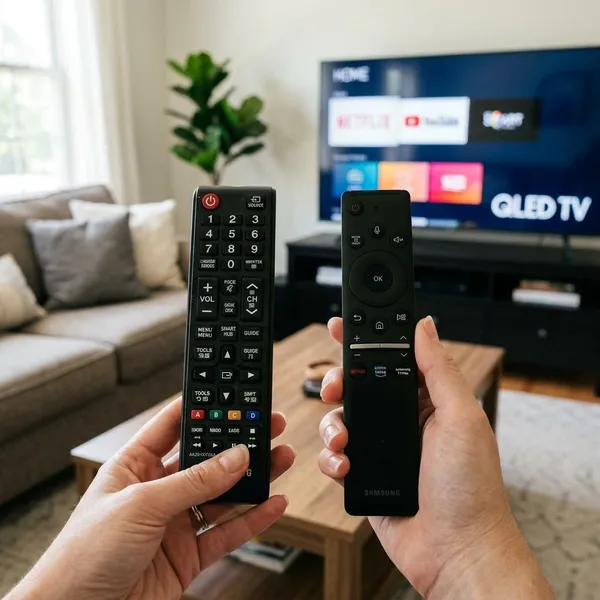
Why is your Samsung TV remote not working?
The quickest way to troubleshoot is to separate the problem into three buckets: the remote has no usable power, the TV is not receiving the signal, or the remote and TV are no longer paired. If the remote worked yesterday and failed after a power cut or TV update, pairing or a TV-side glitch is more likely. If it has been getting slower for days, start with batteries or charging.
- First check power: replace batteries or charge the SolarCell remote.
- Then check communication: look for blocked IR sensors or lost Bluetooth pairing.
- Only then suspect damage: drops, spills, corrosion, or stuck buttons are harder to fix.
The batteries are weak or dead
Battery remotes can act partly broken before they go fully dead. Delayed response, short range, or needing to press buttons harder than usual are all good reasons to try a fresh matching pair. Also check the battery contacts for corrosion or bent metal springs before putting the cover back on.
The SolarCell remote needs charging
A SolarCell remote can run low if it has been left face down, kept in a drawer, or used heavily without much light. Put it under bright indoor light or indirect sunlight, or use USB-C if your model supports it. If you have not used the TV for a few weeks, charging should come before reset steps.
The Bluetooth connection is lost
Smart Remotes use Bluetooth for many controls, so they can have power and still fail to control menus, Smart Hub, or navigation. This often happens after a TV restart, software update, factory reset, or power outage. If Power behaves differently from the Home or directional buttons, pairing is a strong suspect.
The IR signal is blocked
Standard remotes need a clear path to the TV sensor. A soundbar placed just in front of the Samsung logo, a cabinet lip, decorations, or dust along the lower bezel can make the remote work only from odd angles or very close range.
A button is stuck
One jammed button can block other commands. Remove the batteries if possible, then press every button slowly and feel for one that stays down, feels sticky, or does not click like the others. Spilled drinks, crumbs, and sofa dust are common causes.
The remote is damaged
If the problem began right after a drop, spill, or being crushed in a recliner or sofa cushion, internal damage becomes more likely. Try the basic power, reset, and pairing checks first, but if there is corrosion, no signal, and no response after fresh power, replacement may be the more practical fix.
Which type of Samsung remote do you have?
Remote type matters because the right fix changes. A standard remote usually needs batteries and line of sight. A Smart Remote may need pairing. A SolarCell remote may simply need charging before anything else makes sense.
| Remote clue | Most likely fix to try first |
|---|---|
| Battery door and many buttons | Replace batteries and check the IR signal path |
| Slim remote with few buttons | Pair it again with the TV |
| Solar panel on the back | Charge it, then reset or pair if needed |
A standard remote uses replaceable batteries
A standard Samsung remote usually has a battery compartment and more dedicated buttons, such as numbers, Source, Channel, and Menu. Troubleshooting is very hands-on: replace the batteries, clean the contacts, clear the TV sensor area, and test whether the IR emitter is sending.
For an IR test, point the front of the remote at a phone camera and press Power. Many phone cameras show the IR light as a small flash on the screen. If you see nothing after trying fresh batteries, the remote may not be transmitting.
A Smart Remote connects through Bluetooth
A Smart Remote is usually slimmer and does not need perfect aim once paired. When it stops controlling Smart Hub, apps, voice functions, or menu navigation, treat it as a connection problem before assuming the remote is broken.
A SolarCell remote uses light or USB-C charging
A SolarCell remote has an internal rechargeable battery and a solar panel on the back. Do not try to force open a battery cover that is not there. Charge it first, especially if the remote has been stored in a dark drawer or used daily in a dim room.
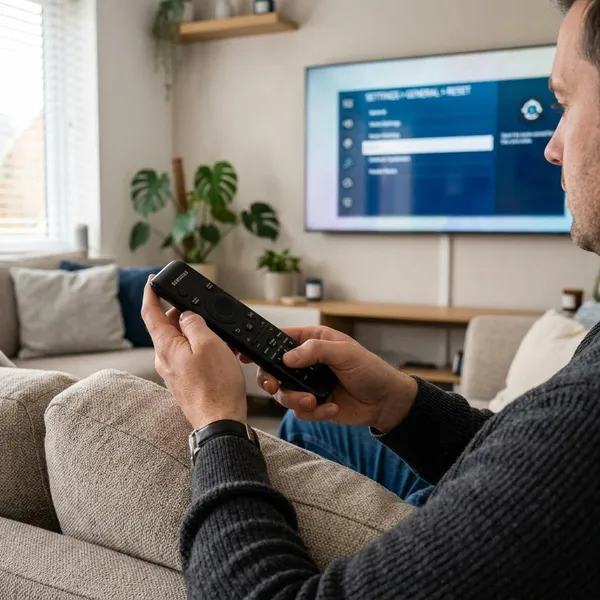
How to reset a Samsung TV remote
A reset is useful when the remote has power but behaves unpredictably. It can clear a temporary remote glitch, but it will not fix a flat battery, blocked sensor, or damaged circuit. That is why power should be checked before judging whether the reset worked.
Remove the batteries and hold Power on a standard remote
For a battery-powered remote, remove both batteries and hold the Power button for about 8 seconds. This helps discharge leftover power inside the remote. Reinsert fresh batteries with the polarity matched correctly, then test Power, Volume, and Menu rather than only one button.
Hold Return and Enter on a SolarCell remote
On many Samsung SolarCell remotes, holding Return and the center Enter button for around 10 seconds can reset the remote. Use a steady press, not repeated taps. If the remote has been low on charge, charge it before or immediately after the reset so you are not testing a drained remote.
Reinsert or recharge the power source
This step is where many failed fixes go wrong. Standard remotes need a fresh pair installed in the correct direction. SolarCell remotes may need time on USB-C or bright light before they respond normally, especially after sitting unused.
Pair the Smart Remote again after the reset
Resetting can leave a Smart Remote unpaired. If the remote has power but the TV ignores Home, directional controls, or Smart Hub, stand close to the TV and pair it again before moving on to replacement.
How to pair a Samsung Smart Remote again
Pairing restores the Bluetooth link between the remote and TV. It is the right fix when a Smart Remote has charge, has not been physically damaged, but the TV no longer reacts to Smart Hub or navigation commands.
Stand close to the TV
Pairing is more reliable when you are close to the screen, roughly within arm's reach. This matters most after a reset or power outage, when the TV may be slow to recognize the remote again.
Hold Return and Play/Pause
Press and hold Return and Play/Pause together for several seconds. If your remote labels differ slightly, look for the Back or Return button and the Play/Pause button. Do not tap quickly; pairing usually needs a steady hold.
Wait for the connection message
The on-screen message is the best confirmation that pairing worked. After it appears, test Home, Volume, and directional navigation. If only one function works, the connection may still be unstable or a button may be faulty.
Restart the TV if pairing fails
If nothing appears, restart the TV before repeating the pairing attempt. Unplug the TV for about 30 seconds. If you use a One Connect Box, unplug that as well so the whole setup refreshes.
Repeat the pairing process
After the restart, try the same pairing steps again while standing close. A second attempt often works when the TV has just reloaded its wireless functions. If it still fails, charge the remote or replace the batteries before trying once more.
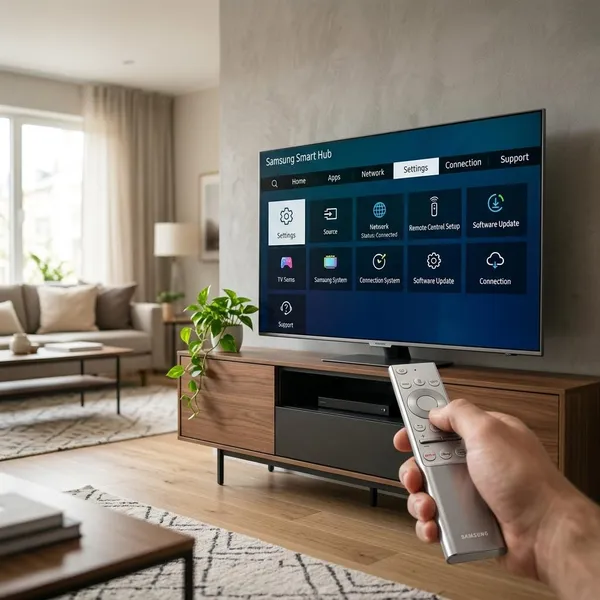
What TV-side fixes can restore the remote?
Sometimes the remote is not the weak point. The TV may be frozen, the sensor may be blocked, or the One Connect Box may need a full restart. This is especially likely if the remote stopped responding after an app crash, a power cut, or a recent update.
Use the TV button to confirm it still responds
Find the physical control button on the TV, often under the center logo or along the bottom edge. If the TV responds there, keep focusing on the remote, sensor, or pairing. If the TV does not respond to its own button, the issue may be power or the TV itself rather than the remote.
Power cycle the TV and One Connect Box
Unplug the TV from the wall for about 30 seconds, then plug it back in. For setups with a One Connect Box, unplug both the TV and the box during the same restart. This is a good low-risk fix when the TV feels frozen or refuses new pairing attempts.
Remove anything blocking the TV sensor
Clear the lower front area of the TV and gently wipe it with a soft cloth. Soundbars are a common problem here: they may look low enough, but still sit directly in the sensor's path. If moving the soundbar makes the remote reliable again, you have found the cause.
Check for a TV software update
If you can control the TV with its button or the SmartThings app, check Settings, Support, and Software Update. A software update may help with Smart Hub response, Bluetooth stability, or remote pairing bugs. Avoid interrupting the TV while an update is installing.
Test the remote again after restarting
Test more than Power. Try Home, Volume, directional navigation, Source, and a few app controls. Full response points to a solved TV-side glitch; partial response helps you decide whether the remaining issue is pairing, a stuck button, weak power, or a failing remote.
Conclusion
The best order is simple: power first, remote type second, reset or pairing third, and TV-side fixes last. If the remote still fails after fresh batteries or charging, a proper reset, a close-range pairing attempt, and a full TV restart, using SmartThings temporarily while you order a compatible replacement is usually more sensible than repeating the same steps all night.