
Resetting Smart Hub is worth trying when your Samsung TV still shows app crashes, missing apps, loading errors, or sign-in loops after a normal restart. It resets the TV's smart platform, not the whole television, so it is usually a safer step than a full factory reset when picture, sound, and HDMI inputs are working fine.
How do you reset Smart Hub on a Samsung TV?
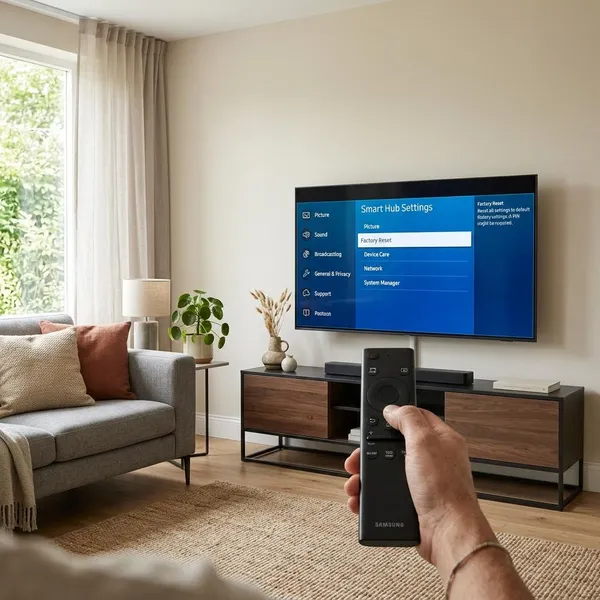
The usual path is Settings > Support > Device Care > Self Diagnosis > Reset Smart Hub. On some newer models you may need to open All Settings first, and on older models Device Care may be skipped. When the TV asks for a PIN, try 0000 if you have never changed it.
Before you start, move out of any streaming app and switch to Live TV or an HDMI input. That simple step prevents one of the most common problems: the reset option appearing grayed out because Smart Hub is still being used.
Close any open app
Leave Netflix, YouTube, Prime Video, Disney+, or any other app completely before going into the reset menu. Press Back or Return until the app closes; on some Samsung remotes, holding Return for a few seconds force-closes the active app.
Open Settings
Press Home, move to the gear icon, and open Settings. If you see a shorter quick settings panel, choose All Settings so the full support menu appears.
Select Support
Support is where Samsung places troubleshooting tools, software updates, and diagnostic options. If your menu looks different from screenshots online, do not stop at the first mismatch; Samsung changes the layout by model year, but the reset tool is usually still somewhere under Support or diagnostics.
Open Device Care
On many recent Samsung TVs, Device Care sits between Support and Self Diagnosis. Let it finish loading if it pauses for a moment, because some models run a quick system check before showing the next menu.
If you have an older TV and do not see Device Care, go straight to Self Diagnosis. That is not a mistake; it is just a different menu layout.
Select Self Diagnosis
Open Self Diagnosis to find repair tools for TV software problems. This is the right area when streaming apps fail but normal TV functions, HDMI devices, picture, and sound still behave normally.
Choose Reset Smart Hub
Select Reset Smart Hub only when you are ready to sign back into services afterward. The reset can remove downloaded apps, clear Smart Hub settings, and sign you out of Samsung and streaming accounts.
Enter your TV PIN
Enter the TV PIN when prompted. The default is often 0000, but if that fails, someone may have changed it during setup or parental-control changes.
Avoid guessing repeatedly if the PIN is unknown. Check with other users of the TV first, then use Samsung's model-specific help if needed.
Select OK to finish
Choose OK and give the TV time to clear and rebuild Smart Hub. The Home screen may look empty or slow for a short while after the reset, especially on older models.
When should you reset Samsung Smart Hub?
Reset Smart Hub when the problem is clearly on the smart-TV side and a simpler fix has not worked. A good order is: restart the TV, check the internet connection, try the problem app again, then reset Smart Hub if the same issue returns.
Apps keep freezing or closing
Repeated freezing, sudden app exits, or apps returning to the Home screen are strong reasons to reset Smart Hub, especially when more than one app does it. If one service fails but everything else works, start with that app's update or reinstall instead.
Smart Hub will not open
If Smart Hub stays blank, opens halfway, or refuses to load, restart the TV first and switch to Live TV or HDMI. If Settings is still reachable and Smart Hub still will not open normally, a reset is a sensible next step before a full factory reset.
This is a common "TV still works, smart features do not" situation: your game console or cable box may work perfectly while the Samsung Home screen is the only broken part.
Apps are missing or will not update
Missing app icons, failed app updates, or an app store that will not refresh can point to corrupted Smart Hub data or outdated service information. A reset forces the platform to rebuild those connections.
There is one important limit: if an app is no longer supported on your TV model or is not available in your region, resetting Smart Hub may not bring it back.
Account sign-ins keep failing
Use a Smart Hub reset when valid passwords work on your phone or laptop but keep failing on the TV. Old login sessions, cached app data, or Samsung account sync problems can make the TV reject a sign-in that is actually correct.
- Check first: TV date and time, Wi-Fi connection, and password spelling.
- Reset next: repeated sign-in loops across more than one app.
- Look elsewhere: one service showing a known outage or account lock.
Smart Hub remains slow after a restart
A restart clears temporary glitches, but it does not fully rebuild Smart Hub. If the Home screen becomes slow again soon after restarting, or every remote press lags inside apps and menus, resetting Smart Hub is reasonable.
Why is Reset Smart Hub missing or grayed out?
When Reset Smart Hub is missing or grayed out, the TV is often in the wrong state rather than missing the feature completely. Start with the practical checks: close the current app, switch away from the Smart Hub screen, and then reopen the settings path.
The other common cause is model variation. Samsung has used different menu names over the years, so a 2017 TV and a recent model may not show the same route even though both can reset the smart platform.
A streaming app is still open
An app running in the background can keep the reset option locked. Force-close the app, return to Live TV or HDMI, then go back to Settings and check again.
The TV is not on Live TV or an HDMI input
Do not try to reset Smart Hub while you are actively sitting inside Smart Hub. Switch to a normal TV channel or any HDMI source first, then open the settings menu from there.
The menu path differs by model
Newer models commonly use Settings > All Settings > Support > Device Care > Self Diagnosis. Older models may use Support > Self Diagnosis without Device Care.
If the exact wording is different, search around Support, Diagnostics, or Smart Features rather than assuming the option has disappeared.
The feature has a different name on older TVs
Older Samsung TVs may call it Smart Hub Reset, place it under Smart Features, or start from a Menu button instead of a Settings icon. The function is the same: it clears the smart platform so it can be set up again.
The TV software needs updating
If menus load oddly, options disappear, or Device Care will not open, check Settings > Support > Software Update. Install any available update, restart the TV, and then look for Reset Smart Hub again.
Use caution if the TV is unstable during updates. If it cannot stay connected or repeatedly fails to update, model-specific support is safer than repeatedly forcing the same update attempt.
What should you do after resetting Smart Hub?
After the reset, do not reinstall everything at once. Let Smart Hub reload, sign in to the Samsung account, install the app that caused the problem, and test it before rebuilding the whole app list.
Open Smart Hub and let it reload
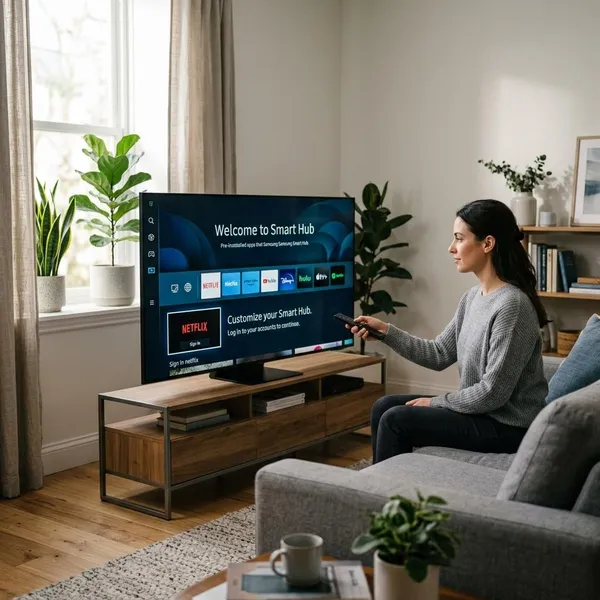
Open Smart Hub and wait for the app rows, store panels, and account prompts to appear. A sparse or slow Home screen immediately after the reset is not always a failure; the TV may still be reconnecting to Samsung services.
Sign in to your Samsung account
Sign in before installing apps, because the app store and regional services may depend on the Samsung account being recognized. If this is a shared family TV, use the account that normally manages the TV rather than a random temporary login.
Reinstall the apps you need
Install only the apps you actually use first. For an older Samsung TV, keeping the app list lean can make everyday navigation smoother.
- Start with the broken app so you can test the fix quickly.
- Add daily-use apps next, such as your main streaming services.
- Leave rarely used apps for later instead of rebuilding clutter immediately.
Sign back into each streaming service
Expect fresh logins for streaming apps. If an app offers phone activation with a code, use it; it is usually faster and less error-prone than typing a long password with the TV remote.
If one service still rejects your login after the reset while others work, check that service's account page or outage status before resetting the TV again.
Test the app that was not working
Open the original problem app, sign in, browse, and start actual playback. Do not stop at "the icon opened," because many streaming problems only appear when a video starts loading.
If the app now plays normally, the reset did its job. If the same fault returns immediately across several apps, the next practical checks are a software update, network stability, and only then a full TV reset if nothing else works.
Conclusion
A Smart Hub reset is best used as the middle step between a quick restart and a full factory reset: strong enough to fix stubborn app and sign-in problems, but usually not so disruptive that you lose your normal picture and sound setup. Close open apps first, reset from the Support diagnostics menu, then rebuild only the apps you need and test the original problem before spending time on the rest.