
If your Nest Hub is stuck, being handed to someone else, or tied to the wrong account, a factory reset clears the display and lets you set it up from scratch. The fastest way is to keep it plugged in, press both rear volume buttons together, and hold through the spoken countdown. Try a simple restart first if the screen is only slow or briefly frozen, because a reset removes your saved setup.
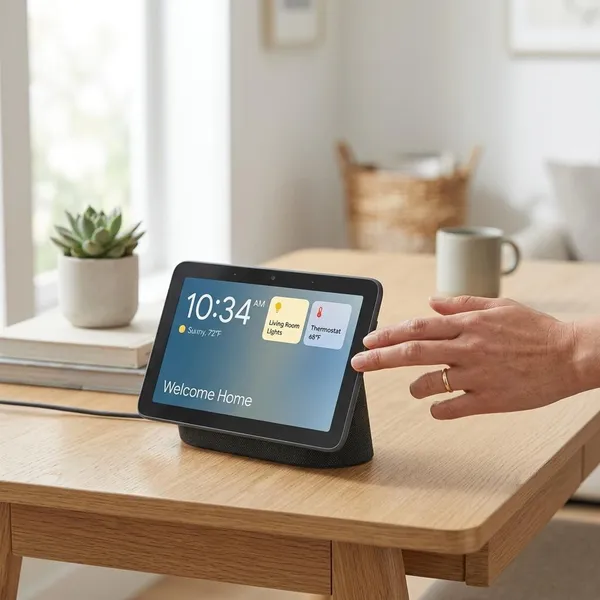
How to reset a Google Nest Hub
A Google Nest Hub or Nest Hub Max is factory reset with the two physical volume buttons on the back of the display. You do not need the touchscreen or the Google Home app to start the reset, which is useful when the device is frozen or stuck during setup.
Keep the Nest Hub plugged in
The Nest Hub needs steady power during the reset, so leave the original power cable connected if possible. If the screen keeps cutting out or the plug feels loose, fix that first; an unstable power connection can look like a software problem and may interrupt the reset.
Find both rear volume buttons
The volume buttons sit on the back of the display, close enough that you can press them with two fingers. Press both together with even pressure. If only one side is pressed, the device will simply raise or lower the volume.
Hold both buttons for 10 seconds
Hold the two buttons for about 10 seconds rather than tapping them. The delay is intentional, so the Hub is not wiped by accident while someone is moving it, cleaning around it, or adjusting the sound.
Follow the spoken countdown
When the Hub announces the reset countdown, keep holding until the countdown finishes. Hearing the countdown is a good sign: the physical buttons are working even if the touchscreen is not responding.
Wait for the welcome screen
Once the reset starts, stop pressing buttons and leave the display alone. The welcome screen is the sign that the wipe is complete and the Nest Hub is ready to be added again in the Google Home app.
What a factory reset removes
A factory reset clears the setup stored on the Nest Hub itself. It is the right move before selling or gifting the display, and it can also help when old Wi-Fi details or a failed setup keep causing problems.
It does not necessarily delete your entire Google Home environment. Your rooms, routines, bulbs, cameras, and other devices may still exist in your Google account, but the reset Hub will no longer be connected to them until you set it up again.
Wi-Fi and account connections
The reset makes the Nest Hub forget its saved Wi-Fi network and removes the active Google account connection from the display. This is especially useful after changing routers, moving house, or preparing the device for a new owner.
Personal settings and preferences
Display choices such as brightness, language, clock style, photo frame behavior, and accessibility settings are cleared. If the Hub was carefully set up for a bedroom as a dim clock or for a kitchen as a photo display, expect to rebuild those preferences later.
Voice Match and linked services
Voice Match and linked services are removed from the Hub, so it stops giving personalized reminders, calendar results, or media suggestions for the previous user. For a shared household, this matters when the main user changes; for a device being sold, it is a basic privacy step.
Smart home setup on the display
The Nest Hub loses its role as a control screen until it is added back to the correct home in the Google Home app. Your smart lights or thermostat may still appear in the app, but this particular display will not control them again until setup is completed.
Restart or factory reset
A restart and a factory reset solve different problems. Restart first when the device is only slow, temporarily frozen, or acting odd after an update. Factory reset when the problem keeps returning, setup will not finish, or the Hub is leaving your home.
| Situation | Better first choice | Why |
|---|---|---|
| Screen is slow after normal use | Restart | Refreshes the device without deleting settings. |
| Setup keeps looping or failing | Factory reset | Clears old local setup data. |
| Changing the main Google account | Factory reset | Creates a cleaner handoff. |
| Selling or gifting the Hub | Factory reset | Removes personal setup from the display. |
Restart for freezing or slow response
For a temporary freeze, unplug the power cable, wait about 30 seconds, and plug it back in. This is the lowest-risk fix because it does not remove Wi-Fi, account links, or smart home settings.
Use this first if the Hub lagged once during a voice command, became slow after an update, or stopped responding for a short time but normally works well.
Reset for persistent setup problems
Choose a factory reset when the Hub cannot complete setup, keeps returning to the same setup screen, or refuses to connect after you have already checked the Wi-Fi password and phone connection. Repeating the same failed pairing steps usually wastes more time than starting clean.
Reset before selling or gifting
Reset the Nest Hub before it goes to another person. The next owner should see the welcome screen, not your old home, account, or display preferences.
Reset when changing the main account
If someone else in the household is taking over the Nest Hub, a factory reset is often cleaner than trying to patch account settings one by one. It is especially helpful after a move, a household change, or a switch from one primary Google account to another.
Set up the Nest Hub again
After the welcome screen appears, the reset is done but the Hub is not useful yet. Set it up again with the Google Home app, the Wi-Fi network you want it to use, and the Google account that should control it going forward.
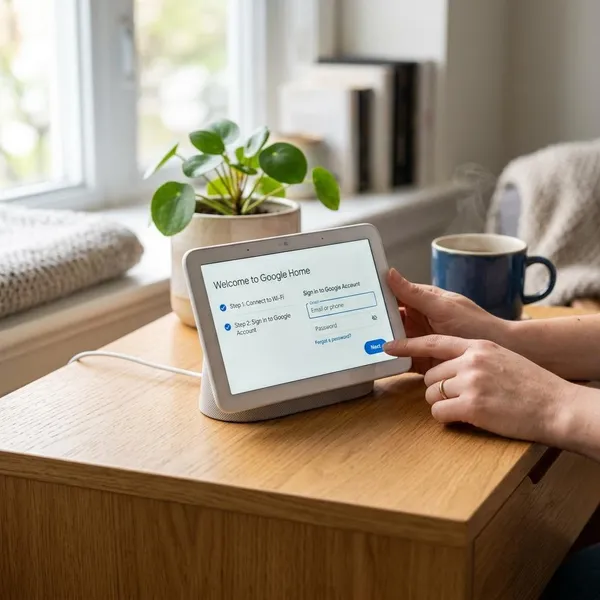
Before starting, keep your phone close to the display and make sure Bluetooth and Wi-Fi are turned on. If you have more than one Google account, check the account in the app first; adding the Hub to the wrong home is an easy mistake.
Open the Google Home app
Open the Google Home app on your phone or tablet and sign in with the account you want to use with the Nest Hub. If the display is for a new owner, they should do this step on their own phone with their own account.
Add the Nest Hub as a new device
Use the add-device option in Google Home and follow the prompts. Even if this was your Hub before, the reset erased the local pairing, so the app needs to treat it like a new device.
Connect it to Wi-Fi
Choose the Wi-Fi network that your smart home devices normally use and enter the password carefully. If setup fails here, check three simple things before resetting again: your phone is on the expected network, the router is working, and the Nest Hub is close enough to get a stable signal.
Link your Google Account
Linking your Google account brings back personalized Assistant features such as reminders, calendar access, and preferred services. Read the prompts rather than rushing through them, especially if the display sits in a shared room where privacy matters more.
Restore Voice Match and preferences
Once the Hub is online, restore only the features you actually use: Voice Match, music services, photo frame settings, clock style, and display brightness. A kitchen Hub may benefit from quick smart home controls, while a bedside Hub usually works better with quieter display and privacy settings.
Conclusion
A factory reset is worth doing when the Nest Hub is stuck in setup, tied to the wrong account, or ready for a new owner; for a minor freeze, restart it first. Once you see the welcome screen, treat the display like a fresh device and set it up with the account, Wi-Fi, and privacy choices you actually want to use from now on.