
To delete apps from Samsung Smart Hub, start in the full Apps area, not the Home screen shortcut row. Open Apps, go to App Settings or Options, choose the downloaded app, then select Delete and confirm it. If you only want fewer icons on the Home screen, use Remove from Home instead, because that does not uninstall the app or free much storage.
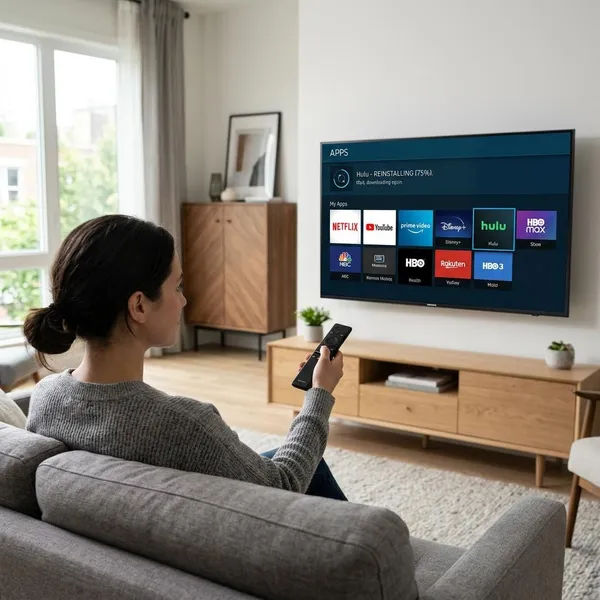
How do you delete apps from Samsung Smart Hub?
The fastest path on many Samsung TVs is Home > Apps > App Settings > select app > Delete. On some older models, the middle step is called Options instead of App Settings. The key detail is that deletion happens inside the app management menu, not from the visible shortcut row.
Press Home and open Apps
Press Home on the Samsung remote, then open Apps. This takes you to the app library and management area, where installed apps and download options are handled.
Do not stop at the Home ribbon if your goal is to uninstall something. That row mainly controls shortcuts, so it is useful for tidying the screen but not reliable for freeing storage.
Select App Settings
Look for App Settings, often near the bottom or side of the Apps screen on newer Samsung TVs. If you do not see that label, look for Options, Settings, or a small menu icon while an app is highlighted.
Choose the app you want to delete
Select the app carefully before using Delete. A streaming app you never open may still be used by someone else in the house, and reinstalling it later usually means signing in again.
- Good candidates: old games, unused fitness apps, duplicate streaming apps, apps that fail to update.
- Think twice: apps with saved settings, children's profiles, or shared household accounts.
- Probably not removable: Samsung system apps and some pre-installed services.
Select Delete
Choose Delete if it appears for the selected app. This removes the app from the TV's storage, which is the option to use when updates keep failing, storage is tight, or an app has become unreliable.
If Delete is grayed out or missing, do not keep repeating the same step. Switch to the model-specific paths below, or treat the app as protected and remove its Home shortcut instead.
Confirm Delete again
Samsung usually asks for one more confirmation. After you confirm, the app should disappear from the installed app list.
If the app still appears immediately afterward, restart the TV and check the Apps area again. Smart Hub can be slow to refresh on older sets, so a short restart is often enough to show the real result.
How do you remove an app from the Home screen?
Removing an app from the Home screen only hides the shortcut from the main Smart Hub row. The app stays installed, so it can still be opened from Apps and it usually will not create the same storage benefit as deleting it.
This is the better choice when the TV feels cluttered but the app might still be useful. For example, a holiday streaming app, a workout app used once a week, or a service used by guests does not need a permanent place on the Home row.
Press Home on the remote
Press Home to open the Smart Hub row. This is the correct place to manage what appears on the front screen of the TV.
Highlight the app shortcut
Move to the app shortcut without opening it. If the app launches, back out and try again, because the remove option only appears when the icon is highlighted.
Open the app options
Open the shortcut menu using the on-screen prompt, down arrow, or options button available on your model. Samsung changes this control between TV generations, so watch the bottom of the screen for hints while the app is selected.
Select Remove or Remove from Home
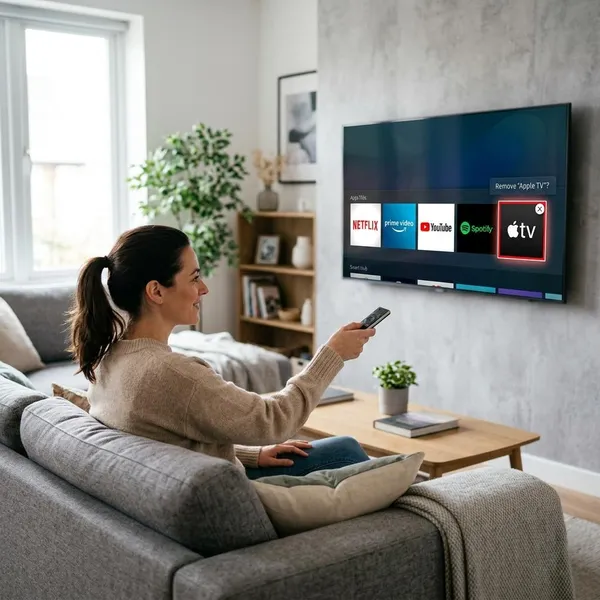
Choose Remove or Remove from Home. This keeps the app installed but removes it from the main row, which is useful when you want the everyday apps easier to reach without deleting anything.
Confirm the change
Confirm if the TV asks. The shortcut should disappear from the Home screen, while the app remains available in the Apps section.
This distinction matters: removing a shortcut is low-risk and easy to reverse, while deleting an app may remove local app data and require a fresh sign-in later.
Where is the Delete option on different Samsung TVs?
The Delete option depends on the Samsung TV generation. If one path does not match your screen, try the path for your series before assuming the app cannot be removed.
| Samsung TV type | Where to look first | What to remember |
|---|---|---|
| Newer models | Apps > App Settings | Delete appears after selecting an app inside settings. |
| K, M, N, and R Series | Apps > Options | Options may appear only after highlighting an app. |
| E, F, H, and J Series | My Apps > Options | Older Smart Hub layouts can be slower and less direct. |
| Other models | Tools, Settings, or contextual menus | Some apps are protected even when you find the right menu. |
How do you reinstall a deleted Smart Hub app?
Deleted apps can usually be reinstalled from the Samsung Apps section as long as the app is still available for your TV model and region. This is useful after an accidental deletion, a storage cleanup, or a troubleshooting attempt.
For a crashing app, reinstalling is often worth trying before you reset Smart Hub or change larger TV settings. It gives the app a fresh local install without changing the rest of your TV setup.
Open Apps from the Home screen
Press Home and open Apps. Deleted apps will not usually remain on the Home row, so the app catalog is the right place to start.
Search for the deleted app
Use search and enter the app name as accurately as possible. If nothing appears, the app may not be available for your Samsung TV generation or region anymore.
Select Install
Choose Install on the app page. If installation fails, check the Wi-Fi connection, restart the TV, and try again before assuming the app is no longer supported.
Open the app after installation
Launch the app once installation finishes. This confirms that the download worked and lets you see whether the original problem, such as freezing or refusing to open, has been fixed.
Sign back into your account
Be ready to sign in again. Many apps remove local login data when they are deleted, even though your account or subscription with the service itself still exists.
If you use the app daily, add it back to the Home screen after signing in. If it is only used occasionally, leaving it inside Apps can keep the main row cleaner.
Conclusion
The practical choice is simple: use Delete when you need storage space or want to reinstall a problem app, and use Remove from Home when you only want a cleaner Smart Hub row. If Delete is missing, check the menu path for your Samsung TV series first, then assume the app may be protected if it still does not appear.