
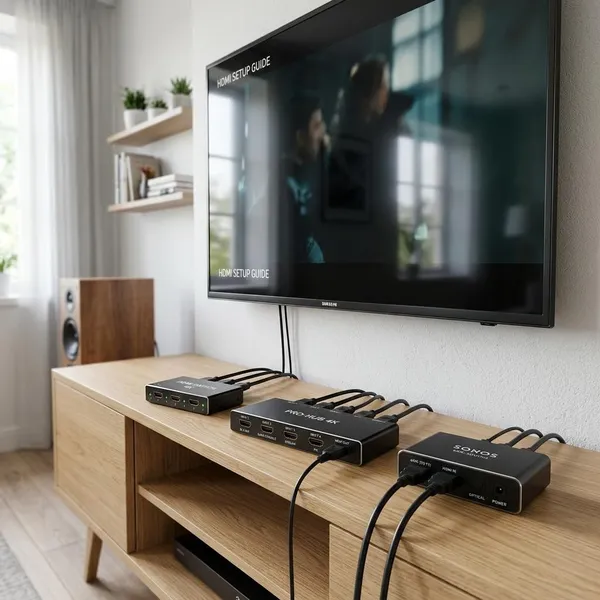
If your TV has run out of HDMI ports, the right hdmi hub for tv is usually an HDMI switch, not a splitter. Start by checking what you want to do: add more devices to one TV, copy one device to two screens, or control several devices and displays. That one choice prevents most buying mistakes.
Which type of HDMI hub do you need?
The word "hub" is used loosely in product listings, so it helps to ignore the label for a moment and look at the job the box performs. For a normal living room setup with a streaming stick, console, and cable box, you usually want a switch. For showing the same source on two screens, you want a splitter. For a TV-and-projector room with several devices, a matrix may be the better fit.
Choose a switch to add more TV inputs
An HDMI switch takes several source devices and sends one selected signal to your TV. It is the practical choice when your TV has too few ports but you only watch one source at a time.
Choose a splitter to copy one video signal
A splitter does not add TV inputs. It copies one HDMI source to two or more displays, such as one media player feeding both a TV and a nearby projector.
The catch is that mixed displays can limit each other. If one screen is 4K and the other is only 1080p, many basic splitters will make both run at the lower format. A powered splitter is usually the safer pick for protected streaming content, longer cable runs, or two displays that are not identical.
Choose a matrix to control several sources and screens
A matrix combines the idea of switching and splitting. It can take several sources and send them to more than one display, either mirrored or routed separately depending on the model.
If you only need extra ports for one TV, a matrix is usually unnecessary. It costs more, adds more settings, and only earns its place when you truly need multi-screen routing.
What do HDMI input and output numbers mean?
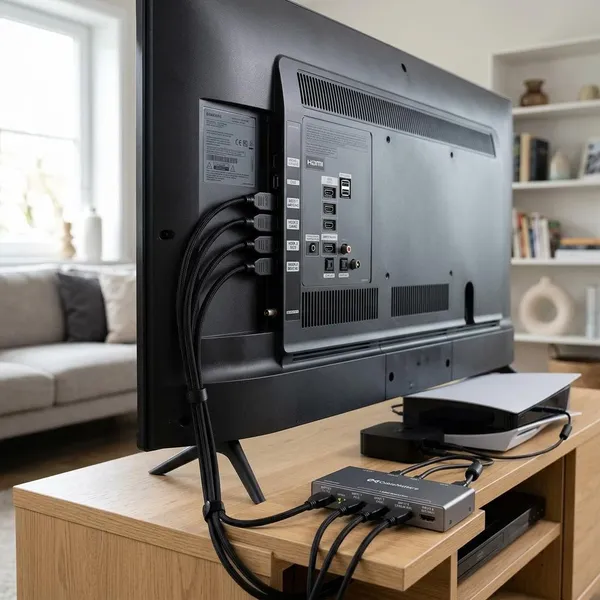
HDMI product numbers are often the fastest way to understand what you are buying. The first number is the number of inputs, and the second number is the number of outputs.
| Label | What it usually means | Best for |
|---|---|---|
| 3x1 | Three sources into one TV | Adding more HDMI inputs |
| 1x2 | One source copied to two displays | Mirroring a screen |
| 4x2 | Four sources routed to two displays | TV and projector setups |
Which HDMI switch features matter for your devices?
The most important checks are video format, bandwidth, power, cable length, and audio routing. Do not buy only because a product title says "4K" or "8K." The useful question is whether it supports the exact modes your devices and TV need together.
Streaming devices need reliable 4K and HDR support
Streaming boxes and sticks usually need dependable 4K60, HDR, and HDCP support. If the switch handles menus but fails when a movie starts, the problem may be copy-protection handshaking rather than the app itself.
For Roku, Fire TV, Apple TV, and similar devices, choose stable pass-through over flashy features. A powered switch is often worth it if the streaming device is always connected, the cable run is not very short, or the TV sometimes loses HDR after waking from standby.
Game consoles may need 4K120 and VRR
Modern consoles can be more demanding than streamers. If your TV and console support 4K120, VRR, or ALLM, the switch must support those features too, or the console may hide them in its settings.
- Casual console use: 4K60 HDR may be fine if you do not use 120Hz modes.
- Competitive or performance-focused gaming: check for 4K120, VRR, and enough HDMI bandwidth.
- One console plus older devices: put the console on the best input path and use lower-demand devices on the remaining ports.
Gaming PCs need enough bandwidth for the TV
A gaming PC can expose weaknesses that a streaming stick never would. PCs may use 1440p at high refresh rates, 4K120 with HDR, or desktop modes where text clarity depends on the signal format.
If the switch is not up to the mode you want, you may see missing refresh-rate options, flicker, black screens, or HDR that looks wrong. Before buying, match the switch to the actual resolution and refresh rate you plan to use, not just to the largest number printed in the product title.
Soundbars and receivers need careful audio routing
Soundbars and AV receivers can change the best connection plan. In many homes, the soundbar should stay on the TV's ARC or eARC port while the HDMI switch connects to a separate TV input for source devices.
If your receiver already has enough HDMI inputs and supports the video modes you need, you may not need a separate switch at all. If you do add one, map the route first: source to switch, switch to TV, TV to soundbar, or source to receiver. That simple sketch prevents many audio surprises.
Projector setups may need longer cable support
Projectors often involve longer HDMI runs, so signal stability matters more. A switch that works perfectly with a short cable to a TV may struggle across a ceiling run or a longer path through a cabinet.
For a projector-only setup, a powered switch and well-rated cables are sensible. For a room that uses both a TV during the day and a projector at night, consider whether a matrix would be cleaner than swapping cables or forcing one display path to do everything.
Will an HDMI switch affect picture quality or gaming?
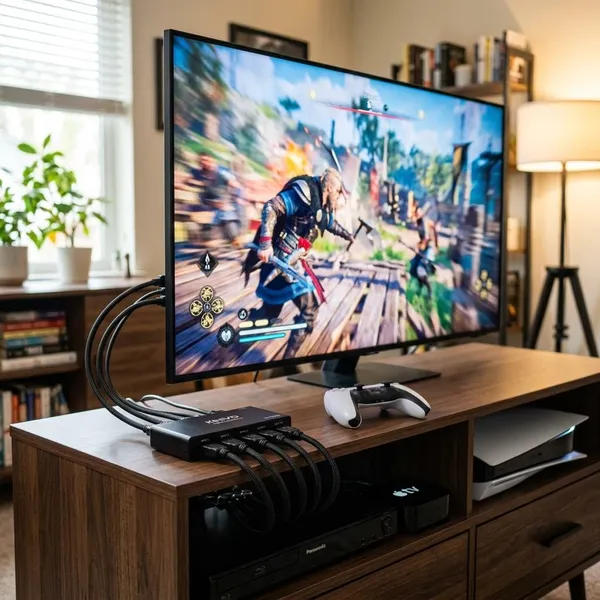
A compatible HDMI switch should not make the picture softer, duller, or laggier. HDMI is digital, so the signal usually passes correctly or shows obvious problems such as no signal, flicker, feature loss, or a reduced output mode.
When trouble appears, look for the weakest part of the chain first: the switch, the TV input, the cable, the source device setting, or a second display in a splitter or matrix setup. The switch is not always the cause just because it was added most recently.
A compatible switch keeps the original picture quality
If the switch supports the same signal your source sends and your TV accepts, the image should look the same as a direct connection. A good switch is meant to pass the signal through, not improve or downgrade it.
If HDR disappears or the resolution drops, treat it as a compatibility warning. Check the TV input mode, the switch rating, and both HDMI cables before assuming the source device is faulty.
The weakest device limits resolution and refresh rate
The final output can only be as strong as the weakest part in the HDMI chain. A 4K120 console will not deliver 4K120 through a 4K60 switch, and a splitter feeding a 4K TV plus an older 1080p display may reduce the signal for both.
Poor cables can cause flicker or signal loss
Cables are a common hidden problem. A cable that worked for 1080p may fail with 4K HDR or 4K120, especially when you add another device between the source and the TV.
- Black screen: try a shorter or better-rated cable.
- Flicker or sparkles: suspect bandwidth or cable quality.
- HDR drops out: check both cables, not just the switch.
A suitable switch should not add noticeable input lag
Most simple HDMI switches do not add noticeable gaming lag because they are not processing the image. If a game suddenly feels slower, check whether the TV changed picture mode on the HDMI input used by the switch. Game Mode may need to be enabled again for that input.
How to connect an HDMI hub to a TV
Set up a switch by connecting its output to the TV, then connecting each device to one of the switch inputs. Take a few extra minutes to test the full signal, not just whether a menu appears on screen.
- Use the right TV input. Choose a port that supports the video features you need.
- Label or note each source. It makes daily switching and troubleshooting easier.
- Use power if the switch provides it. Powered setups are often steadier for 4K HDR and longer cables.
- Test one device at a time. Add the next device only after the first one works properly.
- Check audio and gaming features. Confirm HDR, refresh rate, and sound output, not just basic picture.
Connect the switch output to the TV
Run an HDMI cable from the switch output to one HDMI input on the TV. If your TV has only certain ports that support enhanced formats, high refresh rates, or full gaming features, use one of those for the switch.
Do not automatically use the ARC or eARC port unless your setup calls for it. If a soundbar already depends on that port, the cleaner setup is often soundbar on ARC/eARC and switch on another capable HDMI input.
Connect each source to an input
Plug your source devices into the switch inputs: streaming player, console, cable box, Blu-ray player, or PC. Put the most demanding device, such as a console or gaming PC, on an input you can easily test first.
Attach power if required
If the switch includes USB power or a power adapter, connect it. Even when a model can work without external power, using power can reduce random handshake failures, especially with 4K HDR, multiple devices, or longer cable paths.
Select the correct input
Set the TV to the HDMI input used by the switch, then choose the source on the switch. If auto-switching chooses the wrong device, use manual selection; it is usually more predictable in homes with several devices that wake from standby.
Test video, audio, HDR, and refresh rate
Do a real test before hiding the cables. Play HDR content on a streaming device, open the video settings on a console, and confirm the sound goes to the TV, soundbar, or receiver as intended.
If something fails, simplify the chain. Test the source directly into the TV, then test the same source through the switch with one short known-good cable on each side. That tells you whether the issue is the switch, the cable, the TV port, or the source setting.
Conclusion
The safest choice is to buy for the job, not for the word "hub" in the listing. Use a switch for more devices on one TV, a splitter for copying one source, and a matrix only when several screens genuinely need flexible routing. Once the type is right, match the switch to your highest-demand device first, because that is usually where cheap or underpowered hardware shows its limits.