
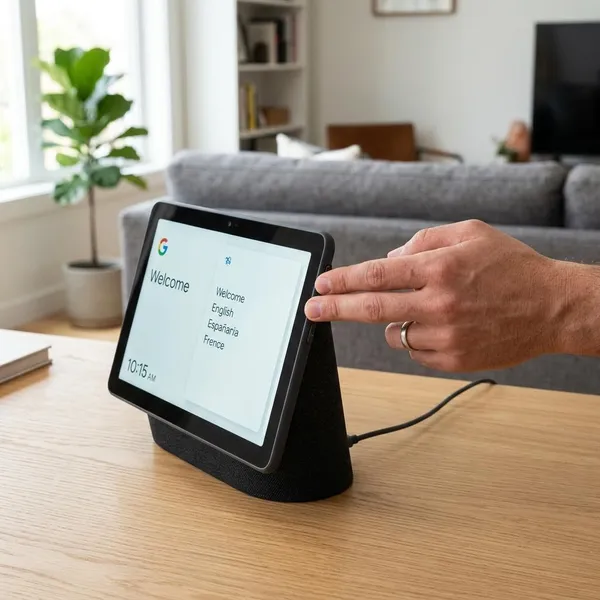
To factory reset a Nest Hub Max, keep it plugged in and hold both volume buttons on the back for about 10 seconds, then keep holding until the reset actually begins. Do this when a restart has not fixed the problem, when you are changing accounts, or when you are preparing the display for someone else.
How to factory reset a Nest Hub Max
The reset is done from the device itself, not from a hidden menu. The most common mistake is letting go when the warning appears, so treat the warning as a checkpoint, not the finish.
Keep the Nest Hub Max powered on
Leave the Nest Hub Max plugged in during the whole process. Unplugging it only restarts the device; it does not factory reset it. If the screen is dark, check the power cable, adapter, and wall outlet before trying the button combination.
Find the volume buttons on the back
The volume control is the long rocker on the back of the display. Place one finger on each end before you press, because pressing only one side will simply change the volume instead of starting the reset.
Hold both volume buttons for about 10 seconds
Press both ends of the rocker at the same time and hold them steadily for about 10 seconds. You do not need to squeeze hard; even pressure matters more than force.
If you are resetting because the device is stuck during setup, stand behind the display and count slowly. Many failed attempts are just uneven button pressure or releasing a second too early.
Keep holding until the reset starts
When the Nest Hub Max warns that it is about to reset, keep holding the buttons. Release only after the reset begins and the device moves into the erase-and-restart process. Once that happens, the old setup is being removed and the display will return to setup mode.
What to do before factory resetting your Nest Hub Max
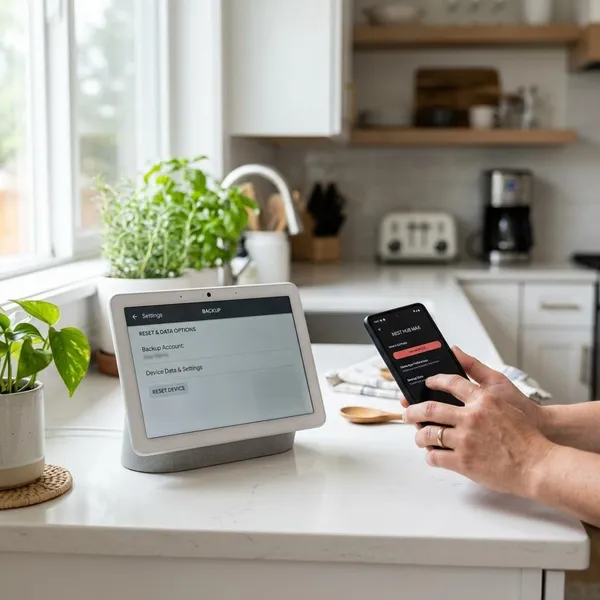
A factory reset is useful, but it is not the first fix for every small glitch. Before wiping the device, decide whether you are solving a serious setup problem, moving it to a new account, or just dealing with a temporary hiccup.
- Minor lag or missed voice command: restart first.
- New router, new owner, or wrong account: a reset usually makes sense.
- Camera or video history matters: check saved clips before removing anything.
Save any important video clips
If you use the Nest Hub Max camera, check any clips you may still need before resetting. This is especially worth doing if the display caught a delivery, visitor, or security-related event. Do not assume you will easily find the same clip after removing and setting up the device again.
Remove the Nest Hub Max from Google Home
Removing the display from the Google Home app is not always required for the hardware reset to work, but it keeps your home cleaner. It is a smart step if you are selling the Nest Hub Max, giving it to a family member, or moving it to a different Google account.
Open the device in Google Home, go to its settings, and use the remove or unlink option if available. If you forget, you can still clean up old offline entries later.
Try a restart first for minor issues
For everyday problems, unplug the Nest Hub Max, wait about 30 seconds, and plug it back in. A restart is the better first move for brief Wi-Fi drops, slow responses, or a frozen screen that only happens once. Save the factory reset for problems that keep coming back or block setup completely.
What a Nest Hub Max factory reset does
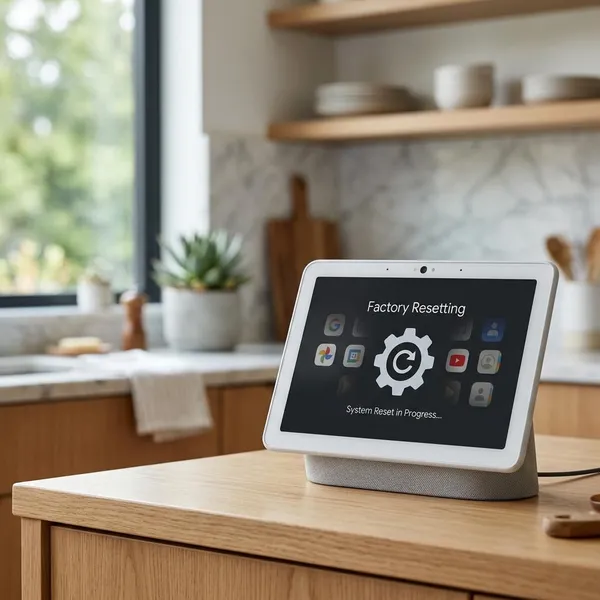
A factory reset puts the Nest Hub Max back into a fresh setup state. That can clear stubborn setup errors and bad network information, but it also means you will need to add the display again and restore the services you actually use.
Erases device settings and preferences
Your display preferences, Assistant-related choices, photo frame settings, and other local customizations are cleared. If the device is used daily in a kitchen for timers, music, calendars, and recipes, expect to spend a few minutes rebuilding those basics afterward.
Removes saved Wi-Fi information
The Nest Hub Max forgets its saved Wi-Fi details during the reset. This is helpful when you changed your router name or password and the display keeps trying to reconnect to the wrong network.
After the reset, have the correct Wi-Fi password ready and set it up near the router if the usual spot has a weak signal.
Disconnects the device from your home
The reset breaks the display's current local setup, so it will no longer behave like your assigned kitchen, bedroom, or living room device until you add it back. Room assignment matters because it affects natural commands such as controlling lights in the same room.
Returns the device to setup mode
After the wipe, the screen should be ready to pair again through the Google Home app. That is the point where the reset has done its job: the old configuration is gone, and you can rebuild only the setup you want instead of carrying over the same problem.
What to do if your Nest Hub Max will not reset
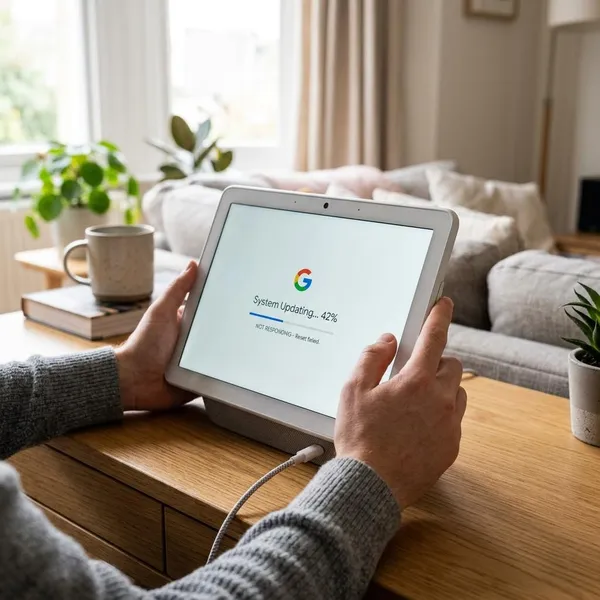
If the reset does not start, check the simple causes first: power, button placement, and timing. The reset method is easy, but the rear rocker can be awkward enough that one or two failed attempts are normal.
Check that the device has power
Look for a lit screen, a startup image, or any sign that the display is receiving power. If there is no response at all, reseat the power connector, try a different outlet, and avoid a loose power strip while troubleshooting.
Hold both volume buttons together
Use both ends of the rear volume rocker at the same time. If the screen only shows a volume change, one side is registering before the other. Reposition your hand and try again with steadier pressure.
Keep holding for the full reset period
Do not stop at the warning. Keep holding until the device clearly begins the reset. If you are unsure, count slowly past 10 and wait for the reset action rather than relying on the first message you see or hear.
Restart the device and try again
If several careful attempts fail, unplug the Nest Hub Max for about 30 seconds, plug it back in, and let it boot as far as it can before trying again. If the buttons still never trigger the reset, the problem may be with power delivery, the rear control, or the device hardware rather than your timing.
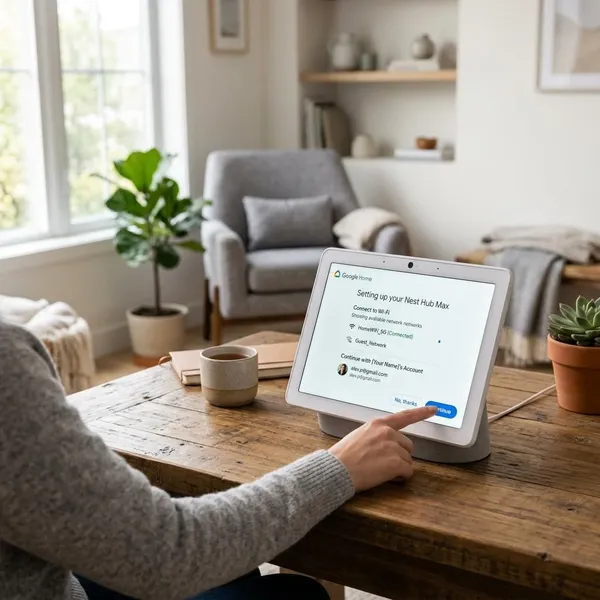
How to set up Nest Hub Max after a factory reset
Once the Nest Hub Max is back in setup mode, rebuild it carefully instead of rushing through the prompts. This is your chance to choose the right home, room, Wi-Fi network, and services so the old problem does not immediately come back.
Open the Google Home app
Open Google Home on your phone or tablet and sign in with the Google account you want tied to the display. Keep your phone on the same Wi-Fi network you want the Nest Hub Max to use, and turn on Bluetooth if discovery is not working smoothly.
Add the Nest Hub Max again
Use the add-device flow in Google Home and select the Nest Hub Max when it appears. Pay attention when choosing the home and room; a display used on a kitchen counter should usually be assigned to the kitchen, not left in a generic room, because room-based voice commands depend on that choice.
Reconnect it to Wi-Fi
Choose the current Wi-Fi network and enter the password carefully. If you reset the device because of a router change, do not reconnect it to an old extender or guest network by mistake. For a stubborn setup, move the display closer to the router first, complete setup, then test it again in its normal spot.
Restore your services and preferences
Add back the features you actually use first: music, video services, calendars, Voice Match, photo frame settings, smart home controls, or camera options. A household that mainly uses the display for timers and music does not need the same setup priorities as someone using it for cameras, routines, and shared calendars.
Conclusion
A Nest Hub Max reset is worth doing when the display is stuck, tied to the wrong setup, moving to a new owner, or still misbehaving after a normal restart. The part that matters most is simple: keep the device powered, press both rear volume buttons together, and do not let go until the reset has truly started.